Example: GUI
These examples show how to use the display of the ZSOM-Control. A button, a slider, lines, graphs and a pixel map are placed on the screen and the touch events are read.
Project: ZSOM-Control_GUI.lvproj. In LabVIEW, open Help → Find Examples and search for “ZSOM”.
Before running an example, make sure that LVGL is installed on the target, that the pictures and font files are on the target and that the FPGA bitfile matches, see Display.
Examples in the project
| VI | Shows |
|---|---|
GUI_Button_RT_main.vi | Places a button and a switch on the screen and displays the generated events when the button is pressed |
GUI_Slider_RT_main.vi | Places a slider and reads its value when it changes |
GUI_Line_RT_main.vi | Draws lines like the hands of a clock |
GUI_Line2_RT_main.vi | Expands the Line example with some more features |
GUI_LineArray_RT_main.vi | Draws a line graph |
GUI_Graph_RT_main.vi | Draws a graph, with two frequency controls |
GUI_Rectangle_RT_main.vi | Draws a bar graph that grows from a selectable edge |
GUI_Pixmap_RT_main.vi | Shows a calculated pixel map |
GUI_Producer_Consumer_RT_main.vi | Application template with a producer and a consumer loop, see below |
The project also contains the FPGA VI GUI_FPGA_main.vi and the host VIs zsom.pc.gui.sync.vi (copies image and font files to the target) and zsom.pc.rtc.sync.vi.
Producer / consumer template
GUI_Producer_Consumer_RT_main.vi implements the producer consumer loop example for the GUI. It displays an indicator, an increment and a decrement button, a slider and checkboxes. The touch events are handled in the producer loop, where commands are enqueued for the consumer loop. The consumer loop creates the background image, loads the font, sets the button style and creates the buttons, the slider and the checkboxes.

RT code: front panel of GUI_Producer_Consumer_RT_main.vi

RT code: block diagram of GUI_Producer_Consumer_RT_main.vi
Web screen
The examples can start a web server on the target. Set the control webscreen port (0 = off, default 8181) and open the following addresses in a browser. The IP address depends on your setting (172.22.11.2 when connected through USB-C).
http://172.22.11.2:8181/webscreen.htmlshows the screen and lets you interact with the GUI.http://172.22.11.2:8181/screen.bmpgets a screenshot of the screen.

With the control enable log all events and errors are written to /home/lvuser/gui/log/liblvgl.log.
Button example
GUI_Button_RT_main.vi presets the button style, which is applied to all buttons placed afterwards, and places a button and a switch. The event string of the pressed button is decoded and displayed on the screen.

RT code: front panel of GUI_Button_RT_main.vi

RT code: block diagram of GUI_Button_RT_main.vi
FPGA
GUI_FPGA_main.vi runs the driver VIs for the display and the touch (zsom.fpga.gui.display.driver.vi, zsom.fpga.gui.touch.driver.vi). These VIs must run to enable the operation of display and touch. The brightness of the display and the touch interval can be set during operation.
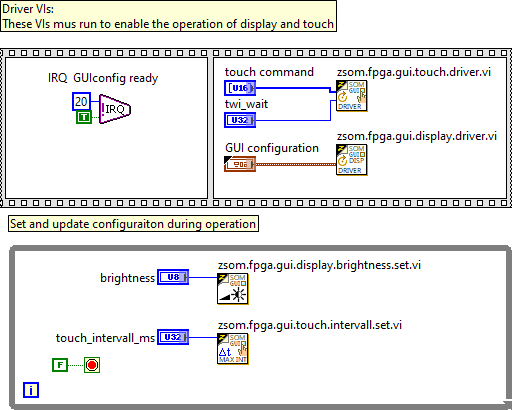
FPGA code: block diagram
Copy image and font files
The host VI zsom.pc.gui.sync.vi (section My Computer) copies the image and font files of the project to the target. Make sure that secure SSH is enabled with NI MAX, set the connection info (target IP, user, password) and run the VI.

Host code (My Computer): front panel of zsom.pc.gui.sync.vi